Shop and in-app purchases#
The shop sells gem packs, a starter pack, Remove Ads, a monthly card, the Growth Pass and more. Out of the box it runs on a fake store: every button works in the editor and in a build, and nothing can charge anybody. Real purchases are one package away.
Do it with AI (skill
add-shop-product, set up once): ask your agent "Add a Mega Gem Pack that gives 5000 gems." Or follow the Hub steps below.
How purchases work#
- A product is an asset in
Content/Shop/Products/. Its id is the store product id: name it exactly what you create in Google Play Console and App Store Connect. There is no mapping table to keep in step. - A product says what it gives (its reward, VIP points) and whether it is consumable (can be bought again, like gems) or non-consumable (bought once, like Remove Ads).
- A product has no price. The store sets the real price in each country; the game shows the store's own text ("$4.99", "4,99 €"). In the editor the fake store shows a clearly fake test price.
- A purchase is granted once per store transaction, so a store that delivers the same purchase twice (after a crash, a reinstall) never pays twice.
Products#
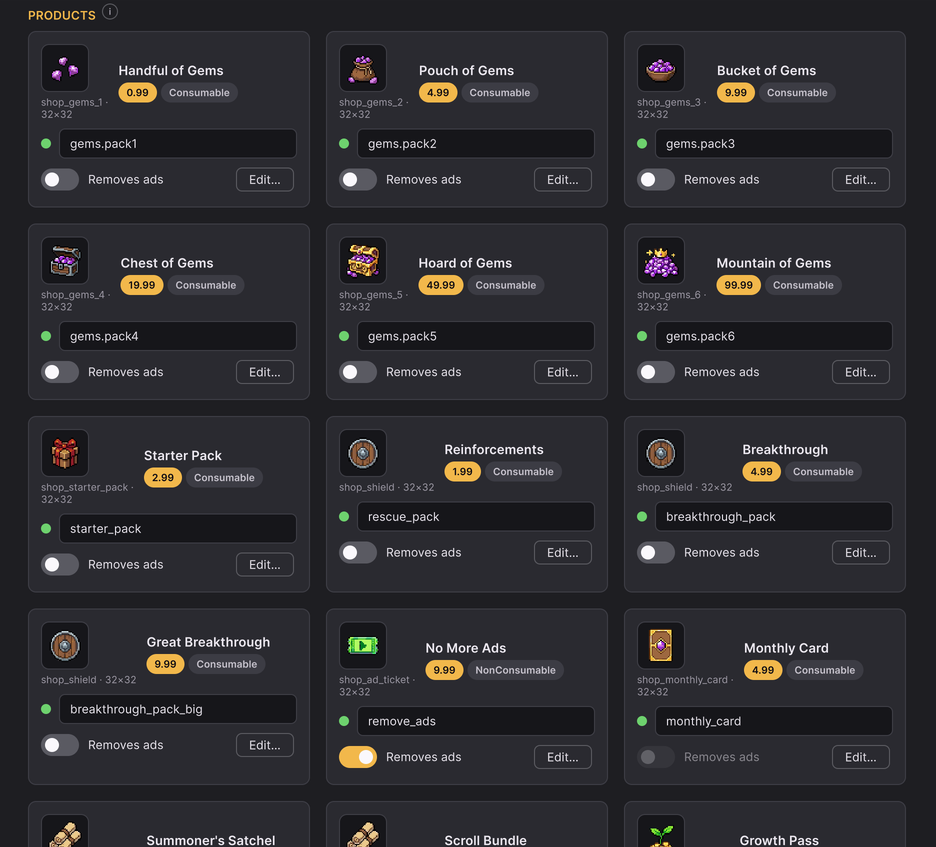
Hub > Monetization lists every product: its store id, what it gives, its test price and which one is Remove Ads. New product… starts from an existing one; Edit… opens it.
- Store ids are checked against both stores' rules (lower case letters, digits,
.and_, starting with a letter). Changing one follows every reference in the game. - Copy all ids copies the list (id and type) to paste while you create the products in the consoles.
- Manual:
Content/Shop/Products/<id>.asset>reward,vipPoints,baseGemValue(what it claims to be worth, for the "best value" labels).
Prices#
The only prices you type are test prices for the fake store (Hub > Monetization, or the Price Overrides list of
Settings/FakeServices.asset). Real prices are set in the consoles:
- Google Play Console > your app > Monetize > Products > In-app products.
- App Store Connect > your app > In-App Purchases.
Gem prices (boosts, gem items, summons) are game currency, not money: they are in the content assets and Hub > Game Balance.
Turn on real purchases#
Do it with AI (skill
setup-services, set up once): ask your agent "Set up real in-app purchases." Or follow the Hub steps below.
- Hub > Services > Store > Install…: Package Manager opens on In-App Purchasing (
com.unity.purchasing5.4 or newer). Click Install. The store adapter compiles by itself; the row turns green. - Edit > Project Settings > Services: link the project to your Unity Cloud project (Unity IAP needs it).
- Hub > Services > Store > Use it: release builds now use the real store. The editor keeps the fake one, so you can keep testing in Play.
- Create every product in both consoles with the same id and the same type (consumable / non-consumable), and activate it. Google Play lets you create products only after you uploaded a first build that contains the store (a build made after step 1).
- Set up receipt validation (next section).
With both the store and ads installed, the release profile is StoreAndAdsServices (real store + real ads). The
technical details: Adapters and backend.
Receipt validation#
Receipt validation checks that a purchase really came from Google Play before the game grants it.
- Google Play Console > your app > Monetize > Monetization setup: copy the licensing public key.
- Hub > Monetization > Open Receipt Obfuscator. It opens where your Unity IAP keeps it (in Unity 6: **Project Settings > Services > In-App Purchasing, section **Google Play > Receipt Obfuscator; an older IAP has its own Receipt Validation Obfuscator window) and the line under the button says what to do there: paste the key and press Obfuscate License Keys. If the page asks you to sign in or to link the project to Unity Cloud, do that first. Without Unity IAP installed the line says so (Hub > Services > Store > Install).
- Unity writes
Assets/Scripts/UnityPurchasing/generated/GooglePlayTangle.csandAppleTangle.cs. That is all: the adapter finds them by itself. Never commit or share the key itself, only the generated files.
Apple purchases are verified by StoreKit 2 on the device. Without the tangle files the game grants purchases
unvalidated and logs one warning; Pre-flight shows keys.iap-tangle.
Server receipt validation#
Optional, for games that use the game server (Online services). The server checks each purchase with Google Play or the App Store before the game grants it, and refuses a receipt that another account already used.
- Set up the device's receipt validation first (above): the server uses the same Google Play licence key.
- Hub > Monetization > Advanced: turn on Check receipts on the server. The line under it shows whose purchases the server accepts: your package name, your bundle id and whether the licence key is set.
- Services > Deployment: deploy
Deploy/Idle.rc(and the rest of the Deploy folder, if you have not yet).
That is all: no secret to create and no server code to rebuild. The Hub writes your ids into Deploy/Idle.rc by
itself when you press Make it yours, change the bundle id in Hub > Project, run Pre-flight in Hub > Release or export
the Live Config. Deploy Idle.rc again whenever the line in step 2 changes. Apple needs nothing more: every StoreKit 2
transaction carries Apple's signature.
- Not deployed yet: the server answers "not configured" and the game grants the purchase on the device's check, as
with the switch off. The device log names the missing key, for example
receipt_not_configured:srv_androidPackage. Idle.rcnames another app (the bundle id changed, or a template update replaced the file): Pre-flight showsonline.receipt-identity; press Write my ids, then deployIdle.rc.- A receipt from another app, a forged one or one already used: refused, never granted.
A stronger Google check is optional: with a Google Play service account the server also asks Google whether each
purchase was cancelled. Play Console > Setup > API access: link a Google Cloud project, enable the Google Play
Android Developer API and create a service account with a JSON key; invite it in Users and permissions with
View financial data; then add the whole JSON file in Unity Dashboard > Cloud Code > Secrets as
IDLE_GOOGLE_SERVICE_ACCOUNT. Never put that file in the project.
Test purchases#
- Editor: Play and buy. Unity IAP's fake store shows a small Buy / Cancel window in the Game view. Test Cancel and Restore purchases too.
- Android: Google Play refuses purchases in a build you copied to the phone yourself (the error says the item is unavailable). Upload the build to an Internal testing track, add your Google account as a licence tester (Play Console > Setup > Licence testing), install from the testing link, then buy.
- iOS: a Sandbox tester (App Store Connect > Users and Access > Sandbox) signed in on the device.
- Also test: kill the app during a purchase and start it again (the purchase is granted once), and **Restore purchases** on a fresh install (non-consumables come back).
Remove Ads#
One product is Remove Ads (Hub > Monetization > Removes ads on its row). It must be non-consumable (Pre-flight refuses a consumable one) so Restore purchases gives it back after a reinstall. With it, every rewarded button pays without showing an ad.
Ticking Removes ads on another product moves Remove Ads there and makes it non-consumable. The old one stops removing ads if it gives something else (gems, a starter pack...). If it sells nothing but ad removal (the template's No More Ads), it would then sell nothing, so the Hub asks: Stop selling No More Ads (it goes to the Trash; Content > Recently deleted brings it back) or Keep selling it too (both remove ads). Monthly cards, the Growth Pass and event packs are bought again and again, so their switch is greyed out (hover it for why).
Paid summons and loot-box rules#
Summons with gems or money are "paid random items" (loot boxes). Some countries restrict them (for example Belgium; check the rules of every country you sell in). Two ways to stay safe:
- Do not sell the game in those countries (Play Console > Production > Countries / regions; App Store Connect > Pricing and Availability).
- Or turn paid summons off:
Content/GameConfig.asset> Summon Paid Allowed off. Gem and money summons disappear (scrolls still summon for free), with every product and offer that sells them.
The odds sheet ("All rates") is computed from the gate's numbers, so the percentages players see are exact. Declare "In-game purchases (includes random items)" in the age-rating questionnaires (Publishing).