Reskin in 30 minutes#
A reskin changes how the game looks and what things are called, without touching its code. Do it before you publish: Google Play and the App Store reject apps that look like a copy of another one.
Do it with AI (skill
reskin, set up once): ask your agent "Switch to a darker palette and use my logo at Desktop/logo.png." New art of your own: skillgenerate-art. Or follow the Hub steps below.
Before you start#
- Do Make it yours first (Hub > Home, step 1). It gives your game its own
Assets/<Company>/<Game>/Art/folder (see Your own art folder): your pictures go there, and a template update never overwrites them. - The game is pixel art at 270x480 reference pixels. New pictures should be pixel art too, the same size as the picture they replace. The Hub imports them with the right settings (no blur, no compression).
- No art of your own yet? An AI assistant with the
generate-artskill can draw it with PixelLab at these exact sizes (your own PixelLab account; it asks before spending credits): see AI Assistant. - Keep Play stopped while you change things.
1. Name, icon and colours (5 min)#
- Hub > Project: your game's name.
- The app icon: Edit > Project Settings > Player > Default Icon: a 1024x1024 PNG. On Android also set the
adaptive icon (foreground and background) under the Android tab > Icon. The template's own icons are in
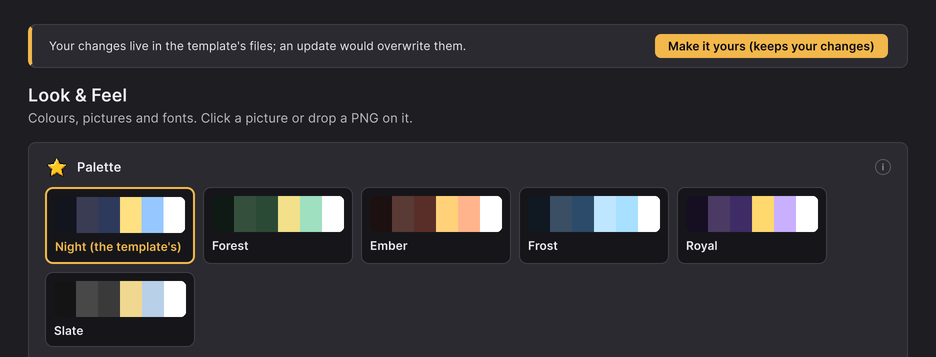
Art/AppIcon/if you want to see the sizes. - Hub > Look & Feel > Palette: pick one. It applies at once (a line under the palettes says so; Ctrl+Z takes it back), and the Hub checks that text stays readable on its background. Advanced shows every colour one by one, each with ↺.
2. Logo and loading screens (5 min)#
- Hub > Look & Feel: the logos are shown as the game draws them now. Click the one to change and pick your PNG, or drop the PNG on it. It must be the same size as the logo it replaces (the slot shows the size, and a wrong one is refused under it). The title screen's logo and the app icon are also on Hub > Project.
- Loading screen: pick a hero in the gallery's title line, then click or drop your picture on its loading screen.
- The title shown in the game is a text: change it in Hub > Texts (search for the old name).
3. Heroes, enemies and names (10 min)#
- Hub > Texts: search for each hero's and enemy's name and type yours. Names are texts, so every language follows (see Localization).
- Hub > Content > Heroes: select a hero; click its portrait or icons (or drop a PNG on them) to replace them. Each shows the picture it has now.
- A hero's or enemy's animated look (the sprite sheets in battle): on its page, under Animations, drop a PNG
strip on Replace next to the animation (after Make it yours). It must be one row of frames of the size the
row shows; the Hub writes it and its JSON into your
Art/Units/<unit>/and the preview plays it at once. Or put yours in your ownArt/Units/<unit>/folder by hand with the template's file names (<unit>_idle.pngand its.json...), then Hub > Look & Feel > Import all art (or Advanced > UnitSheets). Your file wins over the template's of the same name; the clips you did not replace stay the template's.
New heroes and enemies rather than renamed ones: Add a hero, enemy, item or biome.
4. Backgrounds, UI kit and fonts (5 min)#
- Battle backgrounds: one folder per biome in
Art/Backgrounds/<biome id>/with its layer PNGs andlayers.json. Put your layer PNGs (same names, same sizes) in your ownArt/Backgrounds/<biome id>/, then Import all art (or the Backgrounds importer in Advanced). - UI kit (buttons, frames, icons, panels): Hub > Look & Feel > UI kit, search for a piece, then click it or drop a PNG of the same size on it. The 9-slice borders of the piece are kept.
- Fonts: Look & Feel: click the body or the title font's sample (or drop a TTF on it). Pick a pixel font; the importer turns it into the crisp bitmap font the game uses. Check the characters your languages need (see Localization).
- The castle picture:
Art/Castle/(the picture, its overlays and three JSON files). Put yours in your ownArt/Castle/with the same names, then Import all art (or the Castle importer). If your game draws the wide castle (the content database's Castle Wide Variant Id, for examplewide), its picture is the one inArt/Castle/wide/: replace that one too, or Look & Feel warns that your narrow picture is not drawn.
5. Sounds and music (5 min)#
Make it yours gives your game its own Audio/Sfx/, Audio/Music/ and Audio/Vo/ folders. Save your sound with the
same name as the template's (look in the template's Audio/ folders: ad_reward.wav, music_title.wav...; .wav, .ogg and .mp3 all work) in the
same folder of yours, then Hub > Look & Feel > Advanced > Audio. Your file replaces the template's in your game's
sound table (Settings/Audio.asset in your game's folder); a new name gets a row of its own. You can also select that
table in the Project window and drag a clip onto a row by hand: a clip you set by hand is never replaced by an import.
The importer gives each group its settings (effects load fully in memory, music streams). The intro and Fall films
are MP4 files in Assets/StreamingAssets/Cinematic/; replace them with yours of the same name (H.264, portrait, no
text burnt in: subtitles are texts).
Check your work#
- Press Play and walk through each tab.
- Tools > Idle RPG > Validate Content: no red lines.
- Hub > Release > Check for Android:
identity.*problems gone.
Your own art folder#
Make it yours creates Assets/<Company>/<Game>/Art/ with the same folders as the template's Art/ (Units/knight/,
Backgrounds/<biome id>/, UiKit/frames/, Icons/ui/...), empty but for a hidden .gitkeep, and a README.txt. It does not copy the
template's pictures: every importer reads your folder first and the template's for anything you do not have.
- Find the picture in the template's
Art/folder and note its name and folder, for exampleArt/Units/knight/knight_idle.png. - Draw yours at the same size and save it with the same name in the same folder of your
Art/:Assets/<Company>/<Game>/Art/Units/knight/knight_idle.png. A JSON file (layers.json, a unit clip's JSON,pieces.json) is replaced the same way. - Hub > Look & Feel > Import all art (or one importer in Advanced, or its item in Tools > Idle RPG > Art: the menu items work on your game exactly like the buttons), then press Play.
- Your file wins; everything you did not replace still comes from the template. Names match whatever their case.
- The importers write into your game's
Content/. They never change or delete anything in yourArt/folder, and they never change the template'sArt/. - Pictures you replaced with the Hub's own buttons (logo, UI kit, loading screens, hero pictures) are kept when you import again.
- To go back to the template's picture, delete yours and import again.
- Look & Feel > Show my Art folder selects the folder (and creates it for a game made yours before this
existed). Advanced shows, beside each importer, how many of its files come from your
Art/and how many from the template's. - The folders only show where things go. Each holds a hidden
.gitkeepfile (Unity ignores it) so git keeps the folder. You can delete the folders you do not use.
Editing art in place#
Pictures, prefabs and sounds in the template's own folders (Art/, Audio/, Prefabs/) are **overwritten by a
template update**. Do not edit the template's pictures: put your version in your own Art/ folder at the same place
(Your own art folder) and import. Prefabs and sounds have no importer: duplicate them into
your game's folder, change the copy, and point the game at the copy. Keep a list of what you changed:
Changelog and updating says which files an update replaces.