Add a hero, enemy, item or biome#
Everything in the game (heroes, enemies, items, biomes, shop products...) is a data file, not code. Adding one is copying a working one and changing its numbers and pictures. No programming.
How content works#
- Each thing is an asset (a ScriptableObject) under
Content/:Content/Heroes/,Content/Enemies/,Content/Items/,Content/Biomes/and so on. After Make it yours that is your copy inAssets/<Company>/<Game>/Content/. Content/ContentDatabase.assetlists everything the game uses. Something not in its list does not exist for the game. The Hub adds and removes entries for you.- Every asset has an id (lower case, like
knightorfrost_peaks). The save stores ids, so never change an id after players have your game (the Hub warns you). - Names are texts, one per language (
hero.<id>.name), edited in Hub > Texts.
The fastest way is your AI agent (each section names its skill) or Hub > Content. The manual way (Project window + Inspector) is given too.
Add a hero#
Do it with AI (skill
add-hero, set up once): ask your agent "Add a new hero called Frost Archer, Epic, based on the Archer." Its pictures and animations: skillgenerate-art. Or follow the Hub steps below.
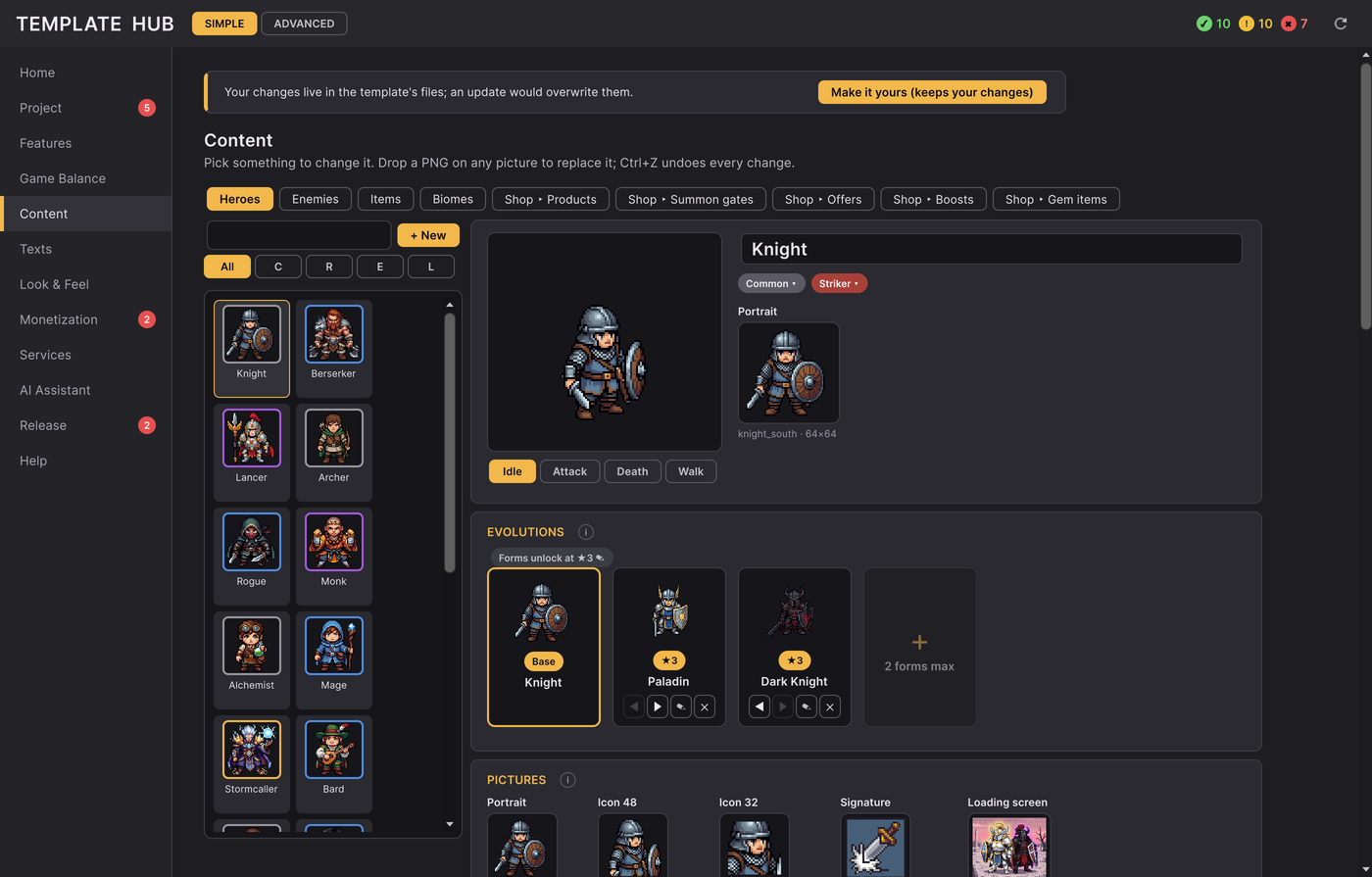
- Hub > Content > Heroes > + New Hero. Pick the hero to start from (one with the same role is easiest) and type
the name. The Hub creates
Content/Heroes/<id>.assetwith a unique id, copies its evolution forms and pictures, writes the name in every language and adds it to the database. - Change what makes it different: click the rarity and role chips at the top, the Damage and **Attack speed** numbers under Stats, and its signature, passive and star bonus cards under Skills. Rarity offers only the rarities the hero fits right now; the others are greyed in its menu with the reason, for example "A Common hero can't have skills this strong… Keep it Rare, or weaken its passive or signature first" (a rarer hero has a bigger power budget), or that a hero with lower damage would make a splash hero of that rarity too strong.
- Pictures: click the portrait, the 48 px / 32 px icons, the signature tile or the loading screen (or drop a PNG on it). Each shows the picture the hero has now; a new one must be the same size.
- Animations (after Make it yours): under Animations, drop a PNG strip on Replace next to Idle, Attack,
Hit or Death: one row of frames, each the size the row shows (for example 112×112); the number of frames may
change. The strip goes into
Art/Units/<unit>/of your game and plays at once. Click the speed chip to change the speed, and on the attack click the frame the blow lands on. A new hero shares its base hero's look until you give it a strip of its own; then it gets a folder of its own and the base hero keeps its look. No pictures or animations yet: Make new art with PixelLab. - Evolved forms: under Evolutions, + Add form copies the last form (a hero has two at most). Click a form's card to give it its own name, pictures and animations; ✕ removes it (to the Trash).
- Where the player gets it: switch on the summon gates it comes out of and the biomes whose bosses drop its
shards. A hero nobody can get shows the note
content.hero-no-source.
Manual: duplicate a hero asset in Content/Heroes/ (Ctrl+D), rename the file, set id and nameKey
(hero.<id>.name) in the Inspector, add it to ContentDatabase > heroes, and add its name in Hub > Texts.
Add an enemy#
Do it with AI (skill
add-enemy, set up once): ask your agent "Add a tougher enemy called Ice Wraith to the second biome." Or follow the Hub steps below.
- Hub > Content > Enemies > + New Enemy, starting from one of the same kind.
- Click its tier chip (which part of a biome it appears in) and the Boss pill for a boss; click the Health × and Gold × numbers to type them (1 = normal). Its animations are replaced like a hero's (drop a strip on Replace); a copied enemy gets a folder of its own the first time.
- Put it in a biome: Hub > Content > Biomes > the biome > its enemies (or its boss / captain field). An enemy no biome uses never appears.
Enemy HP grows by wave from the balance numbers, so an enemy's own numbers are multipliers, not HP.
Add an item#
Do it with AI (skill
add-item, set up once): ask your agent "Add a Rare sword called Frost Blade that drops in the first biome." Or follow the Hub steps below.
- Hub > Content > Items > + New Item.
- Set slot (weapon, armour...), rarity, the stat it raises, base value, value per level, **max
level** and the upgrade cost. Its icon: Choose PNG… (the kit picture
item_<id>). - Put it where players find it: a biome's item pool (Hub > Content > Biomes), a reward, or a shop row.
Add a biome#
Do it with AI (skill
add-biome, set up once): ask your agent "Add a biome called Frozen Peaks after the last one." Or follow the Hub steps below.
A biome is a stretch of waves with its own background, music and enemies.
- Hub > Content > Biomes > + New Biome, starting from an existing one.
- Set wave span (how many waves it lasts, 50 by default), its enemies with their tiers, its boss, and optionally a captain (an ordinary enemy that holds every boss wave but the biome's last).
- Background: put the layer PNGs and
layers.jsoninArt/Backgrounds/<biome id>/in your folder (copy an existing biome's folder to see the shape) and run the Backgrounds importer (Hub > Look & Feel > Advanced). - Item pool and hero shards: what its bosses drop.
- Biomes follow each other in the database's order; the wave ladder is the sum of their spans.
Delete or rename something#
- Delete… in Hub > Content first shows where the thing is used ("boss of Frost Peaks, 3 rewards") and lets you remove it from those places too. It goes to the Trash with its texts and UI kit pictures; **Recently deleted > Restore** brings all of it back, in those places too: list entries, reward lines that gave it and fields that named it by id (such a field that you have set to something else since keeps your choice).
- Ctrl+Z keeps the files in step: undoing + New or Duplicate sends the new files to the Trash, and undoing Delete brings them back from it (Ctrl+Y does the opposite). The Console says what moved.
- Change id… (Advanced) renames it everywhere it is used. Only before your first release. The button waits until you type a different id.
- Ctrl+Z after Choose PNG… also sends the imported PNG in
Art/Iconsto the Trash (Ctrl+Y brings it back). - Name Key (Advanced) must name a text that exists. A key with no text is not saved: the Hub offers **Create the text** (with the current name) or Or pick a key from the texts that exist.
Release content on a day (content drops)#
A content drop ships a hero or a biome hidden and releases it on a chosen day, with a promo week, a castle banner and an Inbox gift. The template ships none (everything is live at launch); the mechanism is there for your game.
- A drop is a
ScheduledDropAssetinContentDatabasenaming the hero or biome and a release day. Its id is saved in players' games: never rename or reuse one. - Release on a Monday, at least 7 days apart. The drop opens at the trusted clock's release day and, with online events on, only after the server's time says so, so a moved phone clock never opens it early.
- A hidden hero is in no reward, summon pool or shop until its day; a hidden biome shows a stand-in look (its
standInBiomeId, else the biome before it) but its waves never move. Validate Content checks all of this. - Its banner is
drop_banner_hero_<id>ordrop_banner_biome_<id>(192x48) in the UI kit. - With Remote Config, Export Live Config sends the drop days to the server; you may move a shipped drop later in the dashboard, never earlier. See Adapters and backend.
Check your content#
Tools > Idle RPG > Validate Content checks every list: missing references, repeated ids, a hero stronger than its budget, empty picture slots. Click a Console line to select the asset. The Hub validates every field as you edit and refuses a value that would break the game. Then press Play.