AI Assistant#
The fastest way to change the game: tell an AI coding agent what you want in plain words ("add a fire mage hero", "add Spanish", "make the early game slower") and it does it inside Unity. The template ships everything the agent needs. Optional: every task also works with the Hub alone, click by click.
How it works#
- Skills: 14 short recipes, one per task (add a hero, translate, make new art, prepare a release...). The agent picks the one that fits your request.
AGENTS.md: the project map and the rules the agent follows.- Unity MCP: the bridge that lets the agent act inside the open Unity editor.
- The same actions as the Hub. The agent calls
TemplateApi, the code behind every Hub button: the same checks, the same one-Ctrl+Z undo, the same Validate at the end. What the Hub would refuse, the agent's call is refused too.
Works with Claude Code, Cursor, Codex and GitHub Copilot's agent. Claude Code reads the skills by
itself; the others read AGENTS.md, which points them to the skills.
Set it up (once)#
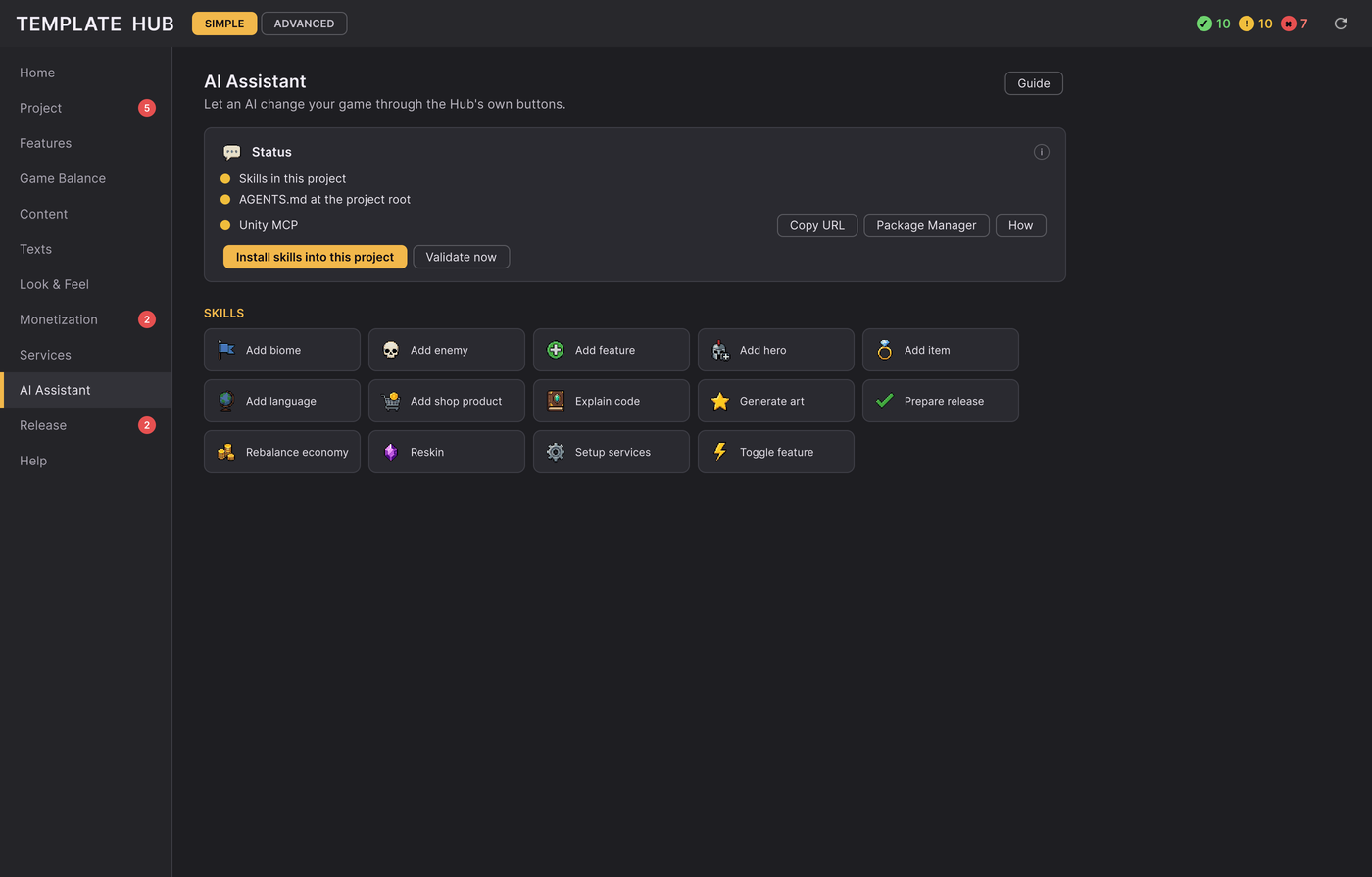
- Hub > AI Assistant > Install skills into this project (details).
- Connect Unity MCP (below).
- Open your AI tool in your project's folder (the one that holds
Assets), with Unity open. Ask away.
Install the skills#
Hub > AI Assistant > Install skills into this project copies AGENTS.md to your project's root folder and each
skill to .claude/skills/. Files you changed yourself are kept: the Hub asks Replace or Keep mine. Its dots
Skills and AGENTS.md turn green.
The originals stay in the template's folder (AGENTS.md, AI/Skills/<name>/SKILL.md). After a template update,
press Install again and choose Replace to get the new versions.
Let the assistant run the Hub's actions (Unity MCP)#
Unity MCP is a free package that is not ours (com.coplaydev.unity-mcp). Asset Store rules do not let the
template change your package list, so you add it yourself:
- Hub > AI Assistant: on the Unity MCP line, press Copy URL.
- Package Manager (the button beside it) > + > Install package from git URL, paste, Install.
- The Hub's Unity MCP dot turns green.
- Open its window from Unity's Window menu and connect your AI tool there. Its own page has the steps for each tool: https://github.com/CoplayDev/unity-mcp
The green dot means the package is installed. If the agent says it cannot reach Unity: check that Unity is open, that the MCP window shows your tool connected, and restart your AI tool once after connecting it.
Without Unity MCP the skills still help, they just cannot click for you: the agent tells you which Hub page and
button to use, then asks you to press Validate now and paste the result. explain-code needs no MCP at all.
The skills#
| Skill | What it does | Ask your agent |
|---|---|---|
add-hero | a new hero from an existing one, named in every language, obtainable | "Add a new hero called Frost Archer, Epic, based on the Archer." |
add-enemy | a new enemy or boss, placed in a biome | "Add a tougher enemy called Ice Wraith to the second biome." |
add-item | a new equipment item and where it drops | "Add a Rare sword called Frost Blade that drops in the first biome." |
add-biome | a new stretch of waves with its enemies and boss | "Add a biome called Frozen Peaks after the last one." |
add-shop-product | a real-money product, with its store id for Google Play and the App Store | "Add a Mega Gem Pack that gives 5000 gems." |
add-language | a new language, translated, with a preview before anything is written | "Add German." |
rebalance-economy | pace, difficulty, gold, costs, idle income, summon rates | "Make the game a bit easier for new players." |
reskin | colours, logo, UI pieces, fonts, loading screens | "Switch to a darker palette and use my logo at Desktop/logo.png." |
generate-art | new pictures and animations with PixelLab (your own account) at the sizes the game takes; asks before spending credits (more) | "Make the Frost Archer's portrait, icons and battle animations with PixelLab." |
toggle-feature | turn a feature on or off, saying what else changes first | "Turn off the Castle." |
setup-services | real purchases, ads, consent, online, analytics, sign-ins, notifications | "Set up my ads and in-app purchases." |
prepare-release | runs Pre-flight, applies the safe fixes, explains the rest | "Prepare my game for release on Google Play." |
add-feature | starts a feature of your own (new C#) the safe way | "Start a new feature called Daily Quiz with its own tab." |
explain-code | answers how the game works; changes nothing | "Explain how the offline chest works." |
Safety#
- Checked before it is written. A change that would break the game is refused and nothing changes; the agent tells you why, in the same words the Hub uses.
- Ctrl+Z (Cmd+Z on Mac) undoes each action, like in the Hub.
- Validate at the end. Every skill finishes with it. Run it yourself any time: **Hub > AI Assistant > Validate now** (or Tools > Idle RPG > Validate Content).
- Your project, your call. The agent never installs packages (it opens Package Manager, you press Install) and asks before bigger steps (importing a translation, switching to real services, building).
- Not while playing. Like the Hub, nothing changes while the game plays or Unity compiles.
- Tip: commit your project to git (or copy the folder) before a long AI session. Undo covers each action; a backup covers everything.
Ask well#
- Make it yours first (Hub > Home, step 1): the agent then edits your copy, which updates never overwrite.
- One task per request. "Add German", then "Add Spanish".
- Say what to start from: "based on the Archer", "like the first biome".
- Give files by path: "my logo is Desktop/logo.png". A new picture has the size of the one it replaces.
- Big change? Ask for the plan first: "Tell me what you would change, then wait."
- Then press Play and look.
Limits#
- Your own AI tool. You need an AI coding tool and its plan; paid tools are yours to pay. The template sends nothing anywhere; your prompts and files go to the AI provider you chose, under its terms.
- No art by itself. On its own the agent cannot draw: it imports the PNGs you give it. For new art, connect
PixelLab and use the skill
generate-art. - No store consoles. Google Play Console, App Store Connect, ad and analytics dashboards are yours to click; the agent tells you what to enter.
- Custom features (new C#) are your own code, outside the template's support (Support).
- It works on the game you are editing (your copy after Make it yours).
Make new art with PixelLab#
The skill generate-art lets the assistant draw what a new hero, enemy, biome or item needs with
PixelLab, a pixel-art AI, and bring it in at the exact sizes the game takes: battle
animations (one strip per animation, the feet on the game's ground line), portraits, icons, backdrops, loading screens,
UI pieces and the app icon.
- You need your own PixelLab account and its MCP server connected to your assistant (the skill gives the one-line setup). The template does not include or pay for PixelLab.
- Generations cost your PixelLab credits: the assistant shows its plan and asks you before anything that costs.
- The art is made under your PixelLab subscription; read PixelLab's terms before you publish, and note that stores may ask you to disclose AI-made art.
- Animations need Make it yours first. Every import is one Ctrl+Z, and the downloaded files stay in a folder
outside
Assets/, so importing again costs nothing.
Without PixelLab, the same import steps work with pictures from anywhere: TemplateApi.Content.StripFromFrames joins
separate frames into the strip an animation takes, and CropPicture / ScalePicture bring a picture to its slot's
size without blurring it.
Validate now#
Hub > AI Assistant > Validate now runs the same check every skill ends with: every content problem, or none. Run it after any change made outside the Hub.