Template Hub tour#
The Template Hub sets up the whole game from one window, so you never hunt through scenes and objects. It is a face over the game's data files: what you change here is the same thing the Inspector shows, and one Ctrl+Z (Cmd+Z on Mac) undoes it.
Opening the Hub#
- Window > Idle RPG > Template Hub, or double-click START HERE in
Assets/NextAppLabs/IdleRpg. - It opens by itself once after the first import. Until you have opened it once, the Console reminds you at every editor start.
- Nothing can be changed while the game is playing (code
hub.play-mode) or while Unity compiles (hub.compiling).
The top bar#
- Simple / Advanced: Simple shows what most games change; Advanced shows every field.
- The health bar (✔ passed · ⚠ warnings · ✖ blockers) is the last Pre-flight run.
- A ? next to a section, a field or a problem opens its help inside Unity (the Idle RPG Help window). A problem's code opens its entry in Errors.md.
- The pages keep their words short: a small round i after a label, and the tooltip of a card, a step or a finding, hold the sentence that explains it.
- Pictures and fonts show what the game uses now. The app icon, the logos, a loading screen, the fonts and every UI kit picture are slots with the picture itself (a font shows a sample line). Click one to choose a file, or drop a PNG (a TTF for a font) on it from the Project window or your desktop. The slot changes at once, with every preview that uses it; a refused file (a PNG of the wrong size) says why under the slot. Only a slot that is really empty says so ("No splash yet: drop a PNG here"). A green YOURS marks a picture that is your own.

Home#
A ten-step checklist that ticks itself from the project: nothing to tick by hand, except Looks good on Features. Each step has Do it, which opens the right section.
- Make it yours · 2. Icon and logo · 3. Choose your features · 4. Balance: pick a pace · 5. Your content (optional) · 6. Texts and languages (optional) · 7. Store and ads · 8. Services: offline or online · 9. Legal · 10. Release: Pre-flight is green.
Every step shows its number, and a ✔ once it is done; optional steps say optional and stay grey until you have opened their section. Each step's sentence fits on one line (the whole of it is the step's tooltip). The card on top names the next step with its Do it; the last step shows where Pre-flight stands right now ("2 blockers left"). Under the list: the latest problems, each with its code, ? and Fix.
Make it yours#
Step 1 of Home, and the one to do first. Its card shows a small preview of your game (the app icon and the title
logo, which you can replace right there). Type the Game name and Company; the Hub suggests a Bundle id
(com.yourstudio.yourgame). Make it yours then:
- sets the company, product name and bundle id in Player Settings (Android and iOS);
- copies
Scenes/Game.unity,Content/,Settings/and the release service profile intoAssets/<Company>/<Game>/, with every reference in the copies pointing at the copies; - puts the copied scene first in Build Settings;
- creates
Scripts/for your own code, andArt/with the template's art folders (empty) for your own pictures.
From then on the Hub, the art importers and Validate Content work on your copy. A template update only changes the template's own folder, so your game is safe (see Changelog and updating). Edits you made before this step are copied too: a banner on every editing page reminds you, and Make it yours (keeps your changes) is right there. After the step the card reads Your game: Assets/<Company>/<Game> and Show my game's folder opens it.
Code, art, audio and prefabs stay in the template's folder. To replace a picture, put yours with the same name in the
same folder of your Art/ and import it (Your own art folder); to change a prefab or
a sound, duplicate it into your folder first (see Reskin).
Project#
Identity: the game's name, company and bundle id as a short form, beside your game's name drawn in the title font under the title logo (it follows what you type). Icon, logo and loading screen: the app icon, the title screen's logo and the first hero's loading screen as the game uses them now; click or drop to replace. The icon takes a square PNG of at least 512×512 (1024×1024 is what the stores ask for) and is set for every platform; a logo or a loading screen takes a PNG of the same size as the one it replaces. Legal: privacy policy address, terms address and support e-mail, each with a dot that turns green once set. These show in the game's Settings screen and the stores ask for them. The orientation, version and build number are in Edit > Project Settings > Player for now.
Each field saves on its own when you press Enter or click away, so you can change the name or the company while the
bundle id is still the template's. A refused value says why under its own field. While the bundle id is still a
placeholder, the page suggests one made from your company and game name (com.<company>.<game>): **Use
com.yourstudio.yourgame** sets it on Android and iOS at once (Ctrl+Z goes back). Pre-flight keeps the placeholder as
its own item (identity.bundle-id.*) until you do.
Problems here: identity.* and legal.* in Errors.md.
Features#
Do it with AI (skill
toggle-feature, set up once): ask your agent "Turn off the Castle." Or use the Hub as below.
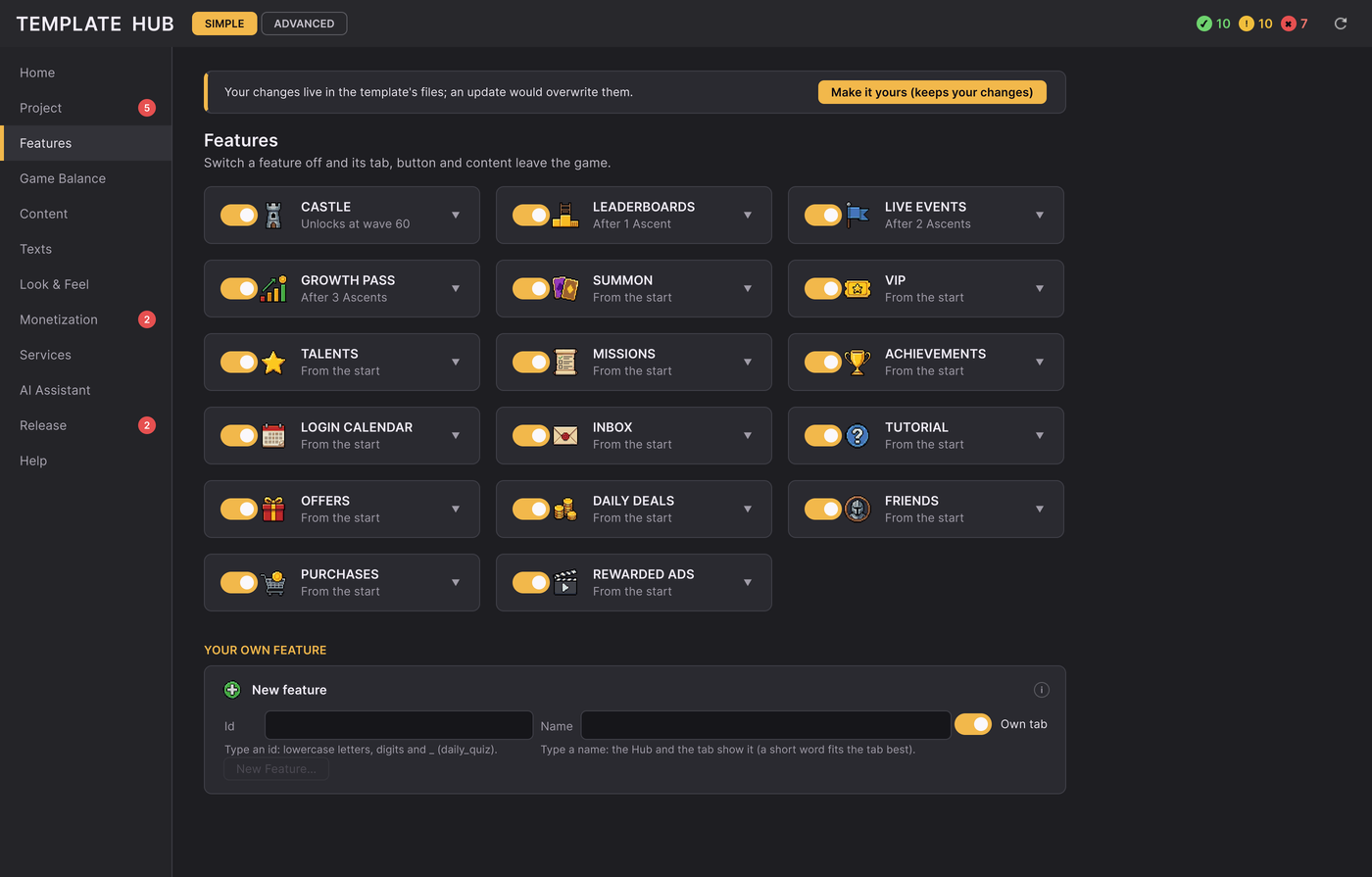
One card per feature (Castle, Summon, VIP, Growth Pass, Live Events, Talents, Missions, Achievements, Login Calendar, Inbox, Tutorial, Leaderboards, Friends, Offers, Daily deals, Purchases, Rewarded Ads...) with an on/off switch, its icon and when it opens; ▼ (or the card's tooltip) says what it does, what it needs and the service it uses.
- Off hides the feature's tab, tile or button and refuses its actions. Its data stays, so turning it back on is safe. If other features need it, the Hub lists them and asks before turning them off too.
- Builds leave out what is off. A player build does not carry the pictures of a turned-off feature's own content (event, VIP, offer and product pictures, building stages, talent and mission icons). They are cleared only while the build runs and put back when it ends, even when it fails; the game's data stays whole, so saves never break. A picture the rest of the game still uses always ships, and so do the UI kit and the castle, which the screens look up by name. To ship everything, tick Tools > Idle RPG > Keep Turned-off Features In Builds.
- Advanced > When features open: the wave or number of Ascensions that opens each feature, and the switch Open features as the player progresses. See Economy.
- Advanced > Tabs along the bottom: the order of the tabs (the five built-in ones and your own), and which show. Battle always shows. The bar shows at most 7 tabs; with six or seven the buttons narrow and long names shorten.
- New Feature…: starts a feature of your own. Give it an id and a name: the button stays grey until both are
usable, and a line under each box says what to fix as you type (the id takes only a-z, 0-9 and _, and must be new).
With Own tab on (the default) it gets its own tab in the bottom bar, with its name, an icon and an empty screen, and no scene or prefab to edit.
The Hub writes a folder in your game (
Features/<Name>/with the tab's screen, a content asset type, a README and aLogic (pure C#)/rules class), adds the feature here off with its tab at the end of Battle's shorter side (so Battle stays in the middle), and creates its content asset after the compile. Turn it on and press Play to see the tab. Pick the tab's icon on the feature's card (Tab icon, any icon of the UI kit); move or hide it in Advanced > Tabs along the bottom. A bar that already shows 7 tabs has no room for a new one (the button stays grey with Own tab on; the API answersfeatures.too-many-tabs): hide a tab first, or switch Own tab off. The rest is your own C#: follow Add your own tab.
Game Balance#
How fast the game moves. Three cards, Relaxed, Standard (the template's numbers) and Hardcore, set the starting numbers at once (growth rates and summon prices stay; the card's tooltip says what each changes). Under them, Curves draws enemy health, gold per kill and hero cost over waves 1 to 300, and follows a slider while you move it (the game's own curves stay faint behind, so you see the change before you let go; nothing is written until then). The sliders are grouped in cards (difficulty, economy, idle and offline, Ascension, Summon); each has its number box and ↺ (back to the template's number) right after it. A slider only offers values your content accepts; when it stops short, a small range chip says so and its tooltip says why, and a refused number is explained under the slider (no pop-up). Advanced shows every other number of the game's config with its help, and every curve over the waves you choose. Details: Economy and balance.
Content#
Heroes, enemies, items, biomes and the shop, edited by looking at them. The left column is a grid of picture tiles (search, and a rarity filter for heroes and items); a narrow Hub puts it above the item you picked. Help sits in the tooltips and the i of each section.
- A hero's page: its battle animation plays at the top (Idle / Attack / Hit / Death buttons), beside its name
(type to rename), rarity and role chips (click to change; a rarity the hero cannot take is greyed in the menu, with
the reason) and its portrait.
- Evolutions: the hero and its forms as cards. Click one to show it in the preview; the pictures, animations and skills below then edit that form. ◀ ▶ reorder, ✎ (or a PNG dropped on the card) changes its portrait, ✕ sends it to the Trash, + Add form copies the last one (two forms at most: the Evolve panel shows two branches). Forms unlock at ★3 is the hero's evolution star; click it to change it.
- Pictures: portrait, 48 and 32 px icons, signature tile and loading screen, as they are in the game. Click one to choose a PNG, or drop one on it. A picture keeps its size; a wrong one is refused under the picture.
- Animations: one row per animation with its frames, a small preview, its speed (click to change it), the
attack's hit frame (click a frame to move it) and where it comes from (template art or yours). Drop a PNG strip of
the same frame size on Replace (the number of frames may change): it goes into your game's
Art/Units/, and the preview plays it at once. Replacing animations needs Make it yours. A look another hero or enemy shares gets its own folder, so only this one changes. - Stats: damage, attack speed, damage a second and splash as bars; the line is the typical value for its rarity. Skill power is its passive and signature against its rarity's budget (red when over). Click a number to type it.
- Skills: its signature, passive and star bonuses as cards with their effect in one line; click a card to edit it.
- Where the player gets it: summon gates and biomes as pills; click one to switch it.
- Enemies: the same animated header and animation rows, health and gold multipliers as bars, and the biomes it appears in. Items: the icon, rarity, slot and stat chips, and the bonus as bars. Biomes: the background, the waves, and the enemies, boss, captain, item drops and hero shards as chips (✕ takes one out, + Add adds one). Shop: a product card with its picture, price and what it gives, and its details.
- Advanced adds All fields (every raw field of it).
- + New starts from a working one (you pick which), so a new hero already has a look, stats and references.
- Duplicate copies it with its forms, avatar, texts and kit pictures.
- Delete… shows where it is used and moves it to the Trash with its texts and kit pictures; **Recently deleted > Restore** brings it back. Ctrl+Z after + New, Duplicate, + Add form or a new picture or strip sends the new files to the Trash too.
- Change id… (Advanced) renames it everywhere it is used. Do it before your first release: players' saves keep the old id. The button waits until the new id is different.
Step by step: Add a hero, enemy, item or biome.
Texts#
One card per language, with its code, its own name and a bar of how much is translated (English is the source); click one to show it next to English. The + card adds a language (it starts as a copy of English). Every text of the game, searchable (by its words or its key, shown small and grey above it), editable in place, 50 to a page (‹ Previous / Next › under the table); Untranslated shows only what is still in English. Export CSV for a translator and Import CSV with a preview. Details: Localization.
Look & Feel#
Palette: colour cards, one click each (applied at once, a line under them says so, Ctrl+Z takes one back; text contrast is checked); the one in use is edged gold. Beside the theme's colours now, a small panel is drawn in them. Logos, loading screen and fonts: every logo shape, a hero's loading screen (pick the hero in the title line) and a sample line in the body and title fonts, as the game uses them now. UI kit: every picture of the interface as a grid (pick the list, search by name). Click a picture or drop a PNG of the same size on it: it is imported as pixel art into your own Art folder. A font takes a TTF at the size it is drawn now.
Your art: drop PNGs with the same names as the template's into the same folders of your game's Art/, then
Import all art; Show my Art folder selects it. Your file wins, the rest comes from the template's Art/, the
pictures you replaced with the buttons above are kept, and neither art folder is ever changed by an import.
Advanced: every colour, the size each font is drawn at (Apply redraws it), and the art importers one by one, each
with how many of its files come from your Art/ and how many from the template's (in its tooltip). Details: Reskin
in 30 minutes.
Monetization#
One card per product: its picture (click or drop to replace), its name and kind, its test price as a chip (the store sets the real one; click the chip to change it), its store id with a dot (green when both stores take it), and Removes ads as a switch (moving it asks what to do with an old one that sells nothing else). Edit… opens it in Content. Copy all ids gives you the list to create in Google Play Console and App Store Connect. Your LevelPlay keys, each with a dot (green set, amber empty or still the template's, red refused), and Save keys; **Use your own keys**: every place the template's own keys are still set, with its fix. Details: Shop and in-app purchases, Ads and consent.
Services#
First Offline or Online (Unity Gaming Services), two cards; the one the game runs is edged gold. Then one card per service: Store, Ads, Ad consent, Online, Firebase, Play Games, Sign in with Apple, Notifications. Each has its icon, a dot (green ready, amber one step left, grey not installed), the Off | Fake | Real pill and its one next step; Details holds what it is for, Settings, the install steps and the packages.
- Install… never installs anything by itself: it opens Package Manager on the right package (you click Install) or shows numbered steps with Copy buttons. The row turns green on its own.
- Use it puts the real store or ads into release builds.
- The pill offers only the choices that take effect (Off, Fake or Real); Details says why the others are not offered, for example "Link the project to Unity Cloud first" or "Firebase is installed with its config files, so the game always sends to it". Fake for the Store or Ads puts release builds back on the template's stand-in (Pre-flight reports it before you publish); when one profile served both, the answer says the other went back to the fake too. A choice that could not be made says why on the card.
- The Analytics card turns analytics on or off (on in the template) and lists the events Unity Analytics needs (see Analytics).
Details: Online services.
Release#
Check for Android / Check for iOS runs Pre-flight: everything between your project and a store release (identity, keys, legal pages, services, texts, features, content). Three tiles count the blockers, the warnings and the checks passed; the findings are grouped under Blockers and Warnings (Advanced adds Notes). Each has its code, one line (its tooltip explains it), a ? and, where no decision is needed, Fix. Fix all automatic applies only those. With nothing left, a big green Ready to publish card says so. Release builds run the same checks and stop on a blocker. Details: Publishing.
Help#
The template and Unity versions; four cards, Quick Start, Manual, Errors and Support (the support page); the last explained build errors (Open Build Errors); and Copy diagnostic report. See Support.
AI Assistant#
The fast path: an AI coding agent (Claude Code, Cursor, Codex, GitHub Copilot) does what the other sections do, from
your words. The status card has a dot each for the skills, AGENTS.md and Unity MCP (with Copy URL, **Package
Manager** and How beside it while it is missing; the Hub never installs it). Install skills into this project copies AGENTS.md and the skills (add a hero, translate, rebalance, prepare
a release...) into your project, and Validate now runs the check every skill ends with. Under it, the skills as a
grid of icons (the tooltip says what each does); Guide at the top opens the full guide. Nothing of the game is
edited here. Details: AI
Assistant.
Undo and saving#
Every change is one undo step and is saved a second later. Everything the Hub does is also a C# method on
TemplateApi, for your own editor tools (see Code architecture).