Quick Start#
From import to your first build. No Unity experience needed: every step says where to click.
1. Import#
- Open Unity 6000.6 (the only version the template is made and tested on).
- Make a new project from Universal 2D in Unity Hub, or open an empty one.
- Import the package (Asset Store > My Assets > Idle RPG Template > Import). Import everything.
- Wait until the progress bar at the bottom right is gone. The Console (Window > General > Console) should show no red lines. If it does, see FAQ and troubleshooting.
The Template Hub window opens by itself once. If you closed it, double-click START HERE in
Assets/NextAppLabs/IdleRpg, or use Window > Idle RPG > Template Hub.
Fastest way: let your AI agent do it#
Have an AI coding tool (Claude Code, Cursor, Codex, GitHub Copilot's agent)? Ask for what you want in plain words and it does the work inside Unity, through the same actions as the Hub's buttons: same checks, one Ctrl+Z per change, and a Validate at the end.
Set it up once (5 minutes):
- Hub > AI Assistant > Install skills into this project.
- Connect Unity MCP (a free package that lets the agent act in Unity): Hub > AI Assistant, on the Unity MCP line press Copy URL, then Package Manager > + > Install package from git URL, paste, Install. Its dot turns green. Then connect your AI tool from its window (the steps).
- Open your AI tool in your project's folder (the one that holds
Assets), with Unity open.
Do Make it yours first (one minute in the Hub): the agent then edits your own copy.
Then ask, for example:
| Ask your agent | Skill it uses |
|---|---|
| "Add a new hero called Frost Archer, Epic, based on the Archer." | add-hero |
| "Make the game a bit easier for new players." | rebalance-economy |
| "Add German." | add-language |
| "Set up my ads and in-app purchases." | setup-services |
| "Prepare my game for release." | prepare-release |
| "Explain how the offline chest works." | explain-code |
| "Make the Frost Archer's portrait and battle animations with PixelLab." | generate-art |
All 14 skills: AI Assistant. The AI tool and its plan are your own; the template needs none.
No AI? Everything below works with the Hub alone, click by click.
2. Press Play#
- Open the scene
Assets/NextAppLabs/IdleRpg/Scenes/Game.unity(double-click it in the Project window). - In the Game view, pick a phone size from the aspect list at the top (for example 1080x1920 Portrait).
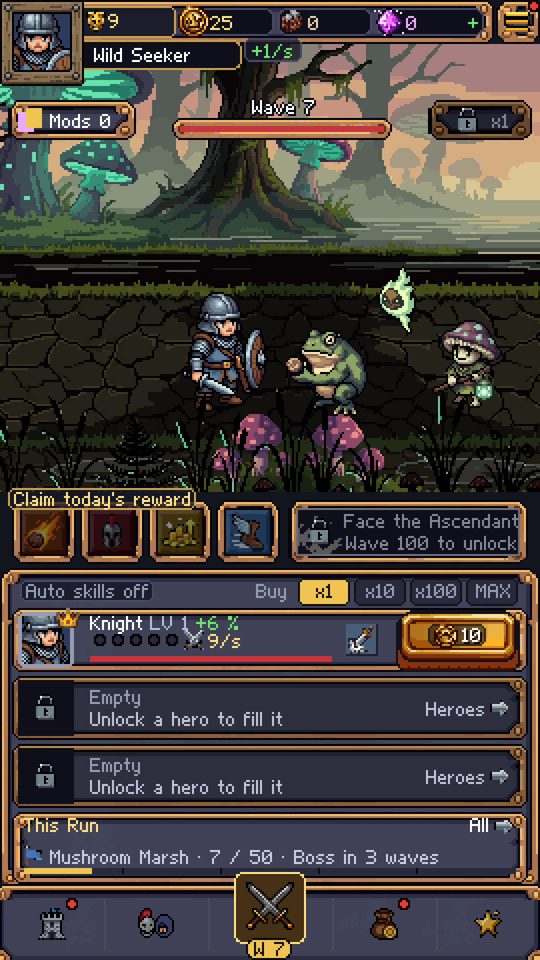
- Press Play (the triangle at the top). The intro plays, then the battle starts.
Everything works offline from the first second: the shop "sells" with a fake store, ads are fake videos, and nothing can charge anybody. Press Play again to stop.
3. Open the Template Hub#
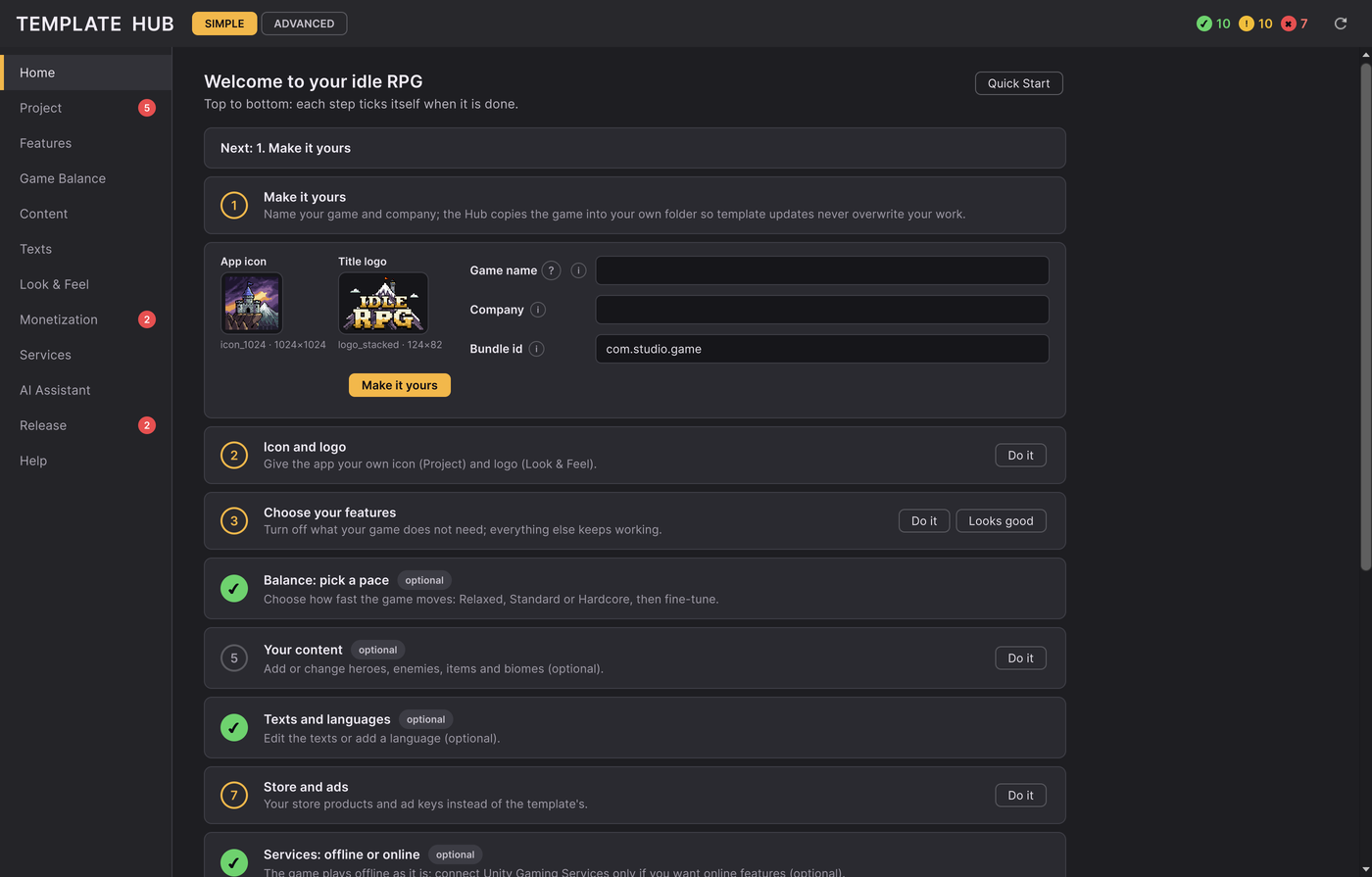
Window > Idle RPG > Template Hub. You set up the whole game from this one window: no scenes, no Inspector.
- The left column lists the sections (Home, Project, Features, Game Balance, Content, Texts, Look & Feel, Monetization, Services, Release, Help).
- The bar at the top shows the project's health: ✔ checks passed, ⚠ warnings, ✖ blockers.
- Simple / Advanced at the top shows more fields when you need them.
- Every ? opens the matching help inside Unity.
A tour of every section: Template Hub tour.
4. Make it yours#
Do this first. Hub > Home > step 1 > Make it yours: type your game's name and your company name, check the bundle
id it suggests (for example com.yourstudio.yourgame), and press Make it yours.
The template arrives with placeholders that Pre-flight marks as blockers until you replace them: company Your Company, game Idle RPG, bundle id com.yourcompany.idlerpg, and legal addresses on example.com. Make it yours replaces the first three; the legal addresses are step 5 below.
It copies the game scene, the game data (Content/), Settings/ and the service profile into
Assets/<Company>/<Game>/, and sets your company, name and bundle id in Player Settings. From now on you edit your
copy, and a template update never overwrites it. Anything you changed before this step is kept in the copy.
Details: Make it yours and Changelog and updating.
5. The first five things to change#
Home lists the steps in order and ticks each one by itself. The five that make the game yours:
- Icon and name. Hub > Project: check the game name. The icon: Edit > Project Settings > Player > Default Icon, a 1024x1024 PNG.
- Look. Hub > Look & Feel: pick a palette, replace the logo and the loading screens. Reskin in 30 minutes.
- Features. Hub > Features: turn off what your game does not need (for example Castle or Events). A turned-off feature hides itself; its data stays, so turning it back on is safe.
- Balance. Hub > Game Balance: pick Relaxed, Standard or Hardcore, then try it in Play. Economy and balance.
- Legal. Hub > Project > Legal: your privacy policy address, terms address and support e-mail. Templates for
both documents are in
Documentation/Legal/.
Stores reject apps that look like a copy of another one, so change the art and the names before you publish.
6. Build#
- Hub > Release: press Check for Android or Check for iOS. Fix every ✖ blocker (many have a Fix button, Fix all automatic applies the safe ones, and every code has a ?).
- File > Build Profiles: pick Android or iOS, Switch Platform, then Build.
- For the stores (keystore, AAB, Xcode, privacy forms): Publishing.
Release builds run Pre-flight on their own and stop on a blocker. Development builds never stop.
Next#
- Real purchases, ads and online services are optional. Each one is a package you install from Hub > Services: Shop and in-app purchases, Ads and consent, Online services, Analytics.
- A problem code you do not understand: Errors.md.
- Everything else: the list of guides.