Add your own tab#
A step-by-step tutorial: a new feature of your own, Boss Quest ("beat 10 bosses, claim 10 minutes of gold"), with its own tab in the bottom bar and its own screen. The Hub makes the tab for you: you write the rule and the screen. It takes about 30 minutes and needs some C#: you copy three files and change a few words. Everything lives in your game's folder, so a template update never overwrites it.
Custom features are your own code: our support covers the template's bugs and documented questions, not features you write (Support). This tutorial is the documented starting point.
Do it with AI (skill
add-feature, set up once): ask your agent "Start a new feature called Boss Quest with its own tab." Or follow the Hub steps below.
What you will build#
- A Boss Quest tab in the bottom bar, next to Castle, Heroes, Battle, Shop and Talents, shown only while the feature is on in Hub > Features. It wears a dot when the reward can be claimed.
- Its screen: the quest's progress ("3 / 10 bosses beaten") and a Claim button.
- The rule in plain C# (testable without Unity), the numbers in a content asset, the texts in the language tables, and the reward paid through a command, like every feature of the template.
Step 1: Make it yours#
Do Hub > Home > Make it yours first if you have not. The new feature is written into your game's folder
(Assets/<Company>/<Game>/), not into the template's.
Step 2: New Feature#
- Hub > Features > New Feature…
- Id:
boss_quest. Name:Boss Quest. Leave Own tab ticked. Press New Feature…, then Make it. (The button stays grey until the id and the name are usable; the line under each box says what to fix.) - Wait until Unity has compiled (the spinner at the bottom right stops).
The Hub wrote, in Assets/<Company>/<Game>/:
| File | What it is |
|---|---|
Features/BossQuest/README.md | notes for this feature |
Features/BossQuest/BossQuestAsset.cs | the feature's numbers, as a content asset type |
Features/BossQuest/BossQuestScreen.cs | the tab's screen: it registers itself as a tab (GameTabs.Register) |
Features/BossQuest/Logic (pure C#)/BossQuestRules.cs | the rules, plain C# (this folder compiles into the Core assembly: no UnityEngine) |
Content/BossQuest/Resources/boss_quest.asset | the content asset, created right after the compile (in Resources, so the screen finds it by id) |
It also added Boss Quest to Hub > Features, off, its tab at the right end of **Advanced > Tabs along the
bottom**, and the text ui.tabs.boss_quest ("Boss Quest"), the tab's name. Every file starts with a namespace made
from your folder (for example MoonStudio.DragonIdle.BossQuest). Keep your namespace when you paste the code
below: replace YourStudio.YourGame with what the Hub wrote.
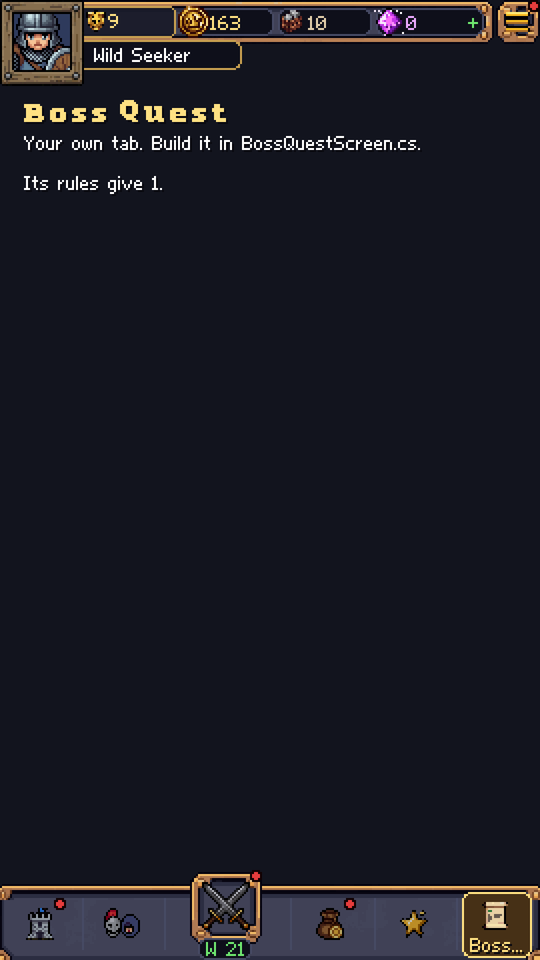
Try it now: turn Boss Quest on in Hub > Features and press Play. After the title screen the bar has six tabs; tap Boss Quest and its starter screen opens. Stop Play and turn it off again until the steps below are done.
If the id is taken you get ai.feature-exists; pick another id. If the bar already shows 7 tabs, its most, you get
features.too-many-tabs: hide a tab you do not need in Advanced > Tabs along the bottom first.
Step 3: The numbers#
Open BossQuestAsset.cs and replace the example field with the quest's two numbers:
using NextAppLabs.IdleRpg;
using UnityEngine;

namespace YourStudio.YourGame.BossQuest
{
    /// <summary>The numbers of Boss Quest. Edit the asset, never the code.</summary>
    [CreateAssetMenu(menuName = "Idle RPG/Features/Boss Quest", fileName = "boss_quest")]
    public sealed class BossQuestAsset : ContentAsset
    {
        [Tooltip("How many bosses the player beats to finish the quest.")]
        public int bossesToBeat = 10;

        [Tooltip("The reward: this many minutes of the player's own gold income.")]
        public int rewardMinutes = 10;
    }
}
Step 4: The rule and its command#
Replace Logic (pure C#)/BossQuestRules.cs with this. The rule keeps count; the command pays the reward. Every
change to the player's save goes through a command, which checks first and changes after, so a refused claim changes
nothing.
using NextAppLabs.IdleRpg;
using NextAppLabs.IdleRpg.Battle;

namespace YourStudio.YourGame.BossQuest
{
    /// <summary>The rules of Boss Quest: beat a number of bosses, then claim once. Plain C#: no UnityEngine.</summary>
    public sealed class BossQuestRules
    {
        public BossQuestRules(int target)
        {
            Target = target < 1 ? 1 : target;
        }

        public int Target { get; }

        public int Beaten { get; private set; }

        public bool Claimed { get; private set; }

        public bool CanClaim => Beaten >= Target && !Claimed;

        public void Load(int beaten, bool claimed)
        {
            Beaten = beaten < 0 ? 0 : beaten;
            Claimed = claimed;
        }

        public void OnBossBeaten()
        {
            if (Beaten < Target)
            {
                Beaten++;
            }
        }

        public void MarkClaimed()
        {
            Claimed = true;
        }
    }

    /// <summary>Pays minutes of the player's own gold income, so the reward stays worth having late in the game.</summary>
    public sealed class ClaimBossQuest : ICommand
    {
        public ClaimBossQuest(int minutes)
        {
            Minutes = minutes;
        }

        public int Minutes { get; }
    }

    /// <summary>Checks first, then changes the save.</summary>
    public sealed class ClaimBossQuestHandler : ICommandHandler<ClaimBossQuest>
    {
        public CommandResult Handle(ClaimBossQuest command, CommandContext context)
        {
            if (command.Minutes <= 0 || command.Minutes > 60)
            {
                return context.Fail(CommandError.InvalidCommand);
            }

            double gold = GoldIncome.ForSeconds(context.Content, context.State, command.Minutes * 60.0);
            RewardGranter.GrantCurrency(context, CurrencyIds.Gold, gold);
            return context.Ok();
        }
    }
}
Why gold and not gems: with the online game server on, the server checks every gem a player has against what the game can pay. Gems your own code pays are not in its count, so a big gem reward could flag the player.
Step 5: The screen#
Replace BossQuestScreen.cs with this. It is still a tab of its own: it registers itself when the game starts, the
game builds it once (Build), and the tab host shows it while its tab is open. It counts bosses even while another tab
is open, and its tab wears a dot while the reward waits (HasDot). It draws with Parts, the game's own fonts,
colours and UI kit, at design pixels (x right and y down from the screen's top-left corner).
using NextAppLabs.IdleRpg;
using NextAppLabs.IdleRpg.Battle;
using UnityEngine;
using UnityEngine.UI;

namespace YourStudio.YourGame.BossQuest
{
    /// <summary>The Boss Quest tab: its progress and its Claim button.</summary>
    public sealed class BossQuestScreen : GameTabScreen
    {
        /// <summary>The feature's id, which is also its tab's and its asset's name.</summary>
        public const string FeatureId = "boss_quest";

        private const string BeatenKey = "mygame.boss_quest.beaten";
        private const string ClaimedKey = "mygame.boss_quest.claimed";

        private BossQuestAsset _content;
        private BossQuestRules _quest;
        private PixelText _progress;
        private Button _claim;

        [RuntimeInitializeOnLoadMethod(RuntimeInitializeLoadType.BeforeSceneLoad)]
        private static void Register()
        {
            GameTabs.Register<BossQuestScreen>(FeatureId, "Boss Quest");
        }

        /// <summary>A dot on the tab while the reward waits.</summary>
        public override bool HasDot => _quest != null && _quest.CanClaim;

        protected override void Build()
        {
            _content = Resources.Load<BossQuestAsset>(FeatureId);
            _quest = new BossQuestRules(_content != null ? _content.bossesToBeat : 10);
            _quest.Load(PlayerPrefs.GetInt(BeatenKey, 0), PlayerPrefs.GetInt(ClaimedKey, 0) == 1);

            AddTitle(TabName, Margin + 14);
            _progress = AddLine(string.Empty, Margin + 38);

            // The Claim button: a gold plate, its word, and a tap area over both.
            Parts.Pill(Root, "Claim Plate", 4, Margin, Margin + 62, 80, 20, Theme.goldFill, Theme.goldOutline);
            Parts.Label(Root, Text("ui.boss_quest.claim"), Margin + 40, Margin + 68, PixelTextAlignment.Centre, Theme.inkOnLight, false);
            _claim = UiParts.TapArea(Root, "Claim", Margin, Margin + 62, 80, 20);
            _claim.onClick.AddListener(Claim);

            // Bosses are beaten while the player is on the Battle tab, so listen for the whole game, not only while open.
            GameEvents.WaveEnded += OnWaveEnded;
            Refresh();
        }

        private void OnDestroy()
        {
            GameEvents.WaveEnded -= OnWaveEnded;
        }

        private void OnWaveEnded(WaveResult wave)
        {
            if (wave.IsBoss && wave.Won)
            {
                _quest.OnBossBeaten();
                PlayerPrefs.SetInt(BeatenKey, _quest.Beaten);
                Refresh();
            }
        }

        private void Claim()
        {
            if (!_quest.CanClaim || Session == null)
            {
                return;
            }

            Session.Commands.Register(new ClaimBossQuestHandler());
            CommandResult result = Session.Execute(new ClaimBossQuest(_content != null ? _content.rewardMinutes : 10));
            if (result.Ok)
            {
                _quest.MarkClaimed();
                PlayerPrefs.SetInt(ClaimedKey, 1);
                PlayerPrefs.Save();
            }

            Refresh();
        }

        private void Refresh()
        {
            _progress.SetText(string.Format(Text("ui.boss_quest.progress"), _quest.Beaten, _quest.Target));
            _claim.interactable = _quest.CanClaim;
            RefreshTabBar(); // the dot follows at once
        }
    }
}
Save the files. The Console must show no red errors. A red compile.core-uses-unity means Unity code ended up in the
Logic (pure C#) folder: only BossQuestRules.cs belongs there.
Step 6: The texts#
The tab's name, ui.tabs.boss_quest, is there already. The screen reads two more texts. Add them in English (the other
languages get English words until you translate them):
| Key | English |
|---|---|
ui.boss_quest.progress | {0} / {1} bosses beaten |
ui.boss_quest.claim | Claim |
- Hub > Texts > Export CSV and open the file in a spreadsheet.
- Add one row per key: the key in the first column, the English text in the English column. Save as CSV (UTF-8).
- Hub > Texts > Import CSV, pick the file, tick Also add the 2 unknown key(s), press Import.
Programmers and AI assistants can instead run TemplateApi.Texts.Set("en", "ui.boss_quest.claim", "Claim") once
per key (in English, a new key is added). Until the keys exist the screen shows #ui.boss_quest.claim#. To rename the
tab, change ui.tabs.boss_quest in Hub > Texts: a short word fits the tab best. With six or seven tabs each tab is
narrow; add the text ui.tabs.boss_quest.short ("Quest") and the tab prints that instead (Hub > Features warns when
a name will not fit).
Step 7: Turn it on and test#
- Hub > Features > Boss Quest: turn it on. On the same card, Tab icon picks the tab's picture from the UI kit
(
ui_questto start;ui_skullsuits a boss quest). - Press Play. After the title screen the bar has a Boss Quest tab at its right end. Beat a boss, then open the tab: the count went up.
- To test the claim quickly, set Bosses To Beat to 1 on
boss_quest.asset(select it in the Project window). The tab wears a dot; open it and press Claim, and the gold arrives. Set it back afterwards. - Hub > Features > Advanced > Tabs along the bottom: move the tab left or right, or hide it. Battle keeps its
raised button wherever it goes; the section says where it sits. A second tab of your own goes to the left end, so
Battle stays in the middle of seven, and gets its own icon (
ui_star). - Tools > Idle RPG > Validate Content: no red lines. Turn Boss Quest off in Features: its tab disappears.
The progress is kept in PlayerPrefs for this tutorial. To keep it inside the game's own save (so cloud save and
backups carry it), a programmer adds a section to the save state: that changes template files
(Code architecture).
The bar's limits#
- At most 7 tabs show at once, Battle included; the Hub refuses an eighth with
features.too-many-tabs. Hide the built-in tabs your game does not need (Castle and Talents also hide when their feature is off). - Up to five tabs keep the drawing's sizes. With six or seven on a narrow phone every button but Battle narrows (to 34 pixels of 270 at seven), and the open tab's name is shortened to fit: prefer names of one short word.
- The tutorial never takes the player to a tab of yours, and a guided step brings the player back from one.
- A tab listed in Features whose screen does not compile is left out of the bar (
features.tab-without-screenin the Console) rather than showing a button that opens nothing.
Advanced: a tab by hand#
New Feature does all of this for you. Without it, any script of yours can be a tab:
- A class that derives from
GameTabScreen(namespaceNextAppLabs.IdleRpg) and builds itself inBuild(). - One line that registers it when the game starts, with the id of the tab:
[RuntimeInitializeOnLoadMethod(RuntimeInitializeLoadType.BeforeSceneLoad)] static void Register() => GameTabs.Register<MyScreen>("my_tab", "My Tab"); - The tab in the bar's list:
TemplateApi.Features.AddTab("my_tab")(an AI assistant can run it), then its place and icon in Hub > Features. Give it a feature of the same id if it should switch on and off.
To open a tab from your own code, call ShowTab("my_tab") on the GameShell. Changing the five built-in tabs
themselves or how the bar is drawn means changing template code (Framework/UI/Widgets/TabBarPlan.cs,
TabBarView.cs), which a template update overwrites: keep a list of the files you changed for the next update
(Changelog and updating). A feature that needs no tab: untick Own tab in New Feature and show its
screen from a button of an existing one.
Where to go next#
- React to more moments:
GameEventsin Code architecture. - Your own look: the game's UI kit pictures are in
Art/UiKit/(pixel art, 9-slice). - Let an AI assistant start features for you: the
add-featureskill (AI Assistant).