Localization#
Every text the player reads is a key (like ui.shop.title or hero.knight.name) with one text per language.
The game ships in English; you can change any text and add any language without code.
Do it with AI (skill
add-language, set up once): ask your agent "Add German." Or follow the Hub steps below.
How texts work#
- Each language is one table in
Content/Localization/(English.asset, plus one per language you add; after Make it yours, in your game's folder). - English is the reference: every other language has the same keys.
- A text may hold placeholders like
{0}(a number or a name the game fills in). A translation must keep the same placeholders. - A key with no text shows as
#key#in the game, so a missing text is easy to spot.
Change a text#
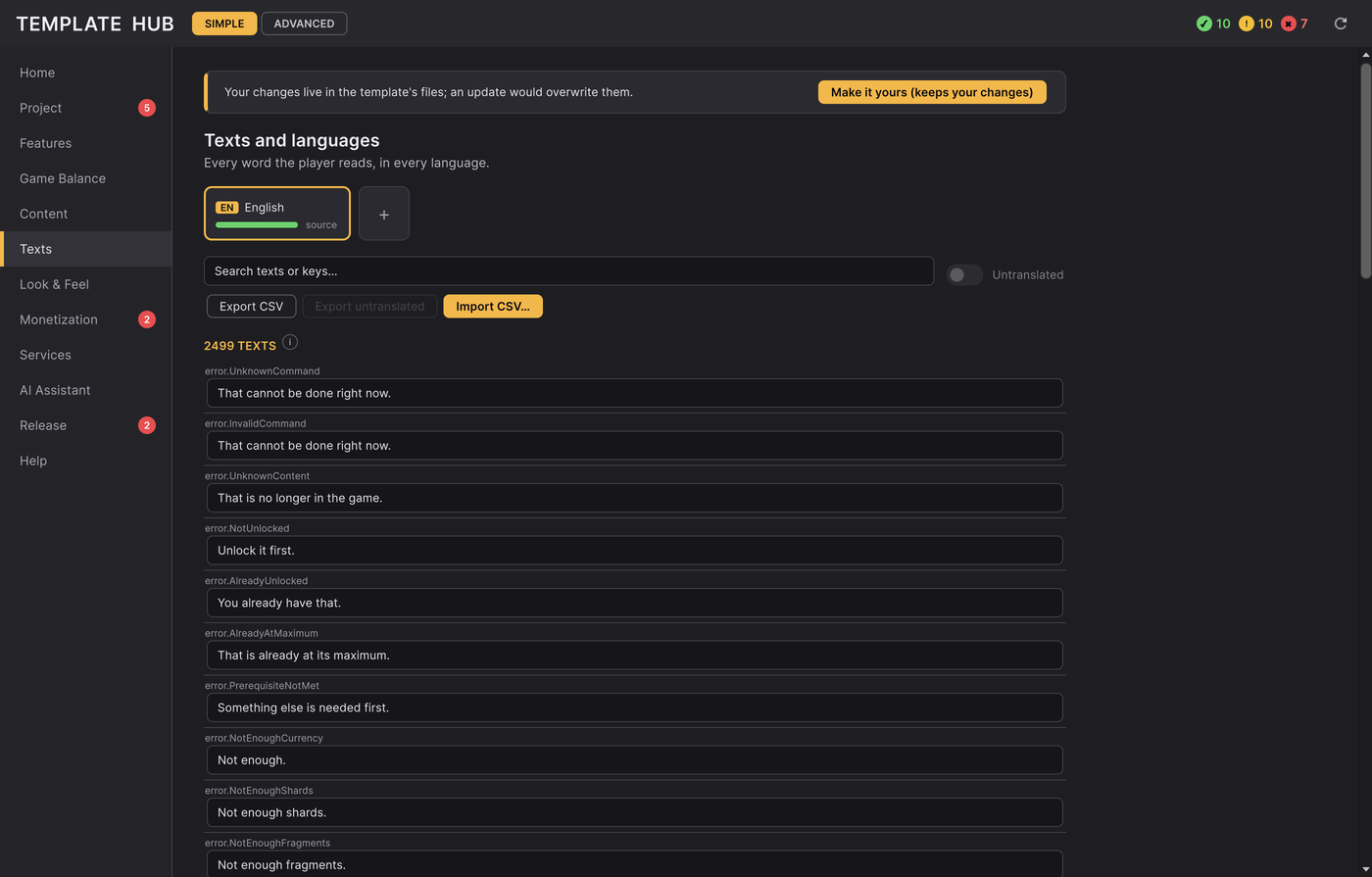
Hub > Texts: search by key or by text, pick the language, and type in place. One undo step per change. Your game's name, hero names, the tutorial lines: all of them are here.
Add a language#
Hub > Texts > Add a language: the language id (for example fr, de, pt-BR) and its own name (Français). It
starts as a full copy of English, marked untranslated, so the game never shows #key#. Then translate it here or
with a spreadsheet (next section). Players pick their language in the game's Settings: the list shows every
language the game has.
Translate with a spreadsheet (CSV)#
- Hub > Texts > Export CSV: everything, or only what is still untranslated in one language. Open it in Excel, Google Sheets or send it to a translator. Keep the first column (the keys) as it is.
- Hub > Texts > Import CSV: pick the file. A preview says what will change ("212 changed, 3 unknown keys, 1 new language"); nothing is written until you press Import.
- Safe by design: an empty cell never erases a text, and a line with wrong placeholders is skipped and listed.
Save the CSV as UTF-8 (Google Sheets does; in Excel pick "CSV UTF-8").
Text checks#
The Hub checks every language against English, and Pre-flight reports what is left:
| Code | Meaning |
|---|---|
texts.missing | a key English has and this language does not (Fix: fill with English for now) |
texts.placeholder-mismatch | the translation's {0} placeholders differ from English |
texts.too-long | the text is much wider than the English one and may not fit its box |
texts.missing-glyphs | the pixel font has no picture for some characters (next section) |
texts.duplicate-key | the same key twice in one table |
Each code's fix: Errors.md.
Fonts and characters#
The game uses bitmap pixel fonts: each character is a small picture, so a font only has the characters it was made with. The template's fonts cover English and most Western European languages. For Cyrillic, Greek, Chinese, Japanese, Korean, Arabic and others:
- Pick a pixel font (TTF) that has those characters and allows commercial use.
- Hub > Look & Feel: click the body or the title font's sample (or drop the TTF on it).
- Check again:
texts.missing-glyphsshould be gone. Look at the screens in Play: some languages need more room.
Right-to-left languages (Arabic, Hebrew) are not supported by the template's text layout.
Texts from code#
Programmers: never put a literal string on screen. Add a key to the English table (`TemplateApi.Texts.Set("en",
"ui.my_feature.title", "My Feature")` or Hub > Texts), then read it with the game's localizer
(GameShell.localization.Get(key) or Format(key, args)). See Code architecture.