Online services#
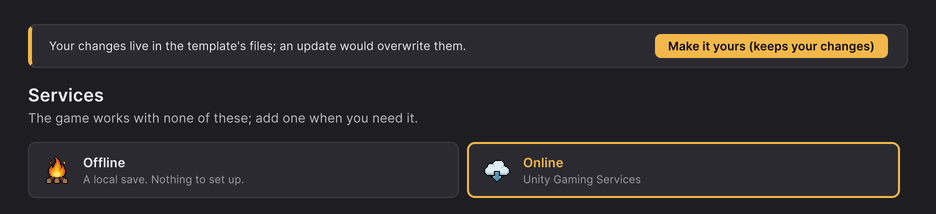
The game plays fully offline. Online services add cloud save, a server that checks progress, leaderboards, friends, live changes without an update, and analytics. Pick one of three ways in Hub > Services.
Three ways to run#
| What you get | What you set up | |
|---|---|---|
| Offline (the default) | everything but the online features; saves on the phone (with Android backup) | nothing |
| Unity Gaming Services (recommended online) | cloud save, server time, anti-cheat checks, leaderboards, friends, gift codes, Remote Config, Unity Analytics | a Unity Cloud project, the packages, one deploy |
| Your own backend (PlayFab, Firebase, Nakama, your server...) | whatever you write | a C# class of yours (programmers) |
We do not run a server for your game: your players' data lives in your own accounts.
Offline (the default)#
Nothing to do. The save is one file on the phone, backed up by Android and iOS device backups. Leaderboards show "ghost" players (see Adapters and backend); features that need a server (friends, gift codes, online events, cloud save) stay hidden. The Offline card in Hub > Services switches back to this at any time.
Unity Gaming Services#
Do it with AI (skill
setup-services, set up once): ask your agent "Turn on Unity Gaming Services for cloud save and leaderboards." Or follow the Hub steps below.
- Link the project: Edit > Project Settings > Services (Hub > Services > Link project): sign in, pick
your organization, create or pick a project. Pre-flight shows
online.not-linkeduntil this is done. - Hub > Services > Online > Install…: install Authentication (
com.unity.services.authentication), then the parts you want: Cloud Save, Cloud Code (the game server), Leaderboards, Friends, **Remote Config, **Analytics. Each part turns itself on when its package is installed. - Hub > Services > Online (the card). The settings asset
IdleRpgUgsSettings(the Online service card's Details > Settings) has one switch per part and Use In Editor (off = Play in the editor stays offline). - In the Unity Dashboard (cloud.unity.com), for the environment you ship (
production), turn on the services you installed. - Deploy the server files: install Deployment (
com.unity.services.deployment), open **Window > Unity Gaming Services > Deployment, select the files inDeploy/and press **Deploy. SeeDeploy/README.md.
The Console then says [Online] Using Unity Gaming Services. An unlinked project logs why it runs offline instead.
Cloud save#
Saves the game online so it survives a new phone. It syncs at start, after important moments and when the app goes to the background. When both copies moved on, the newer one wins; when they are far apart (or the other copy has more purchases) the player is asked "Keep local / Use cloud".
Needs: Authentication + Cloud Save packages, Cloud Save on in the dashboard. Mention it in your privacy policy. Details: Adapters and backend.
Server time and the game server#
With Cloud Code installed and IdleServer.ccm and GetServerTime.js deployed:
- Server time: moving the phone's clock forward no longer pays out offline rewards early.
- The game server checks the progress the phone reports (it never plays the game): impossible progress flags the account, which keeps playing but is hidden from leaderboards and gets no season rewards. It also rolls summons, pays season and event rewards, and handles gift codes and account deletion.
The server reads its numbers from Remote Config keys starting srv_, so after a balance change you run **Tools >
Idle RPG > Export Live Config** and deploy Deploy/Idle.rc again: no server rebuild. Details:
Adapters and backend.
Leaderboards and friends#
- Deploy
Deploy/Leaderboards/*.lb(a monthly board and a lifetime board) andDeploy/Idle.ac(players may not write scores themselves; only the server does). - Deleting a player's scores (Settings > Delete cloud data) needs a service account: Unity Dashboard >
Administration > Service Accounts > create one with the role Leaderboards Admin, create a key, and store its id
and secret in Cloud Code > Secrets as
IDLE_SERVICE_ACCOUNT_KEYandIDLE_SERVICE_ACCOUNT_SECRET. - Friends need a linked account (Apple or Google Play Games, below): an anonymous account is lost with the phone. Players add each other with an 8-character friend code.
Details: Adapters and backend.
Remote Config (live changes)#
Change listed numbers, prices, rewards and texts for every player without a store update, or put everyone back on the shipped numbers.
- Install Remote Config (
com.unity.remote-config) and Deployment. - Tools > Idle RPG > Export Live Config writes
Deploy/Idle.rcwith the game's own values. Deploy it. - Change a value in the Unity Dashboard (Remote Config > Configs). Players get it at their next start (the game
never changes numbers mid-session). Set
rc_enabledtofalseto put everybody back on the shipped numbers.
A value that would break the game is ignored and logged. The list of live keys and the LiveOps patches: Adapters and backend.
Sign in with Apple and Google Play Games#
Optional. Links the online player to a store account, so the save follows the player to a new phone. The rows appear in Settings once the plugin is there. The App Store requires Sign in with Apple when you offer another sign-in.
Google Play Games (Android)
- Download the Google Play Games plugin for Unity (v11 or later)
.unitypackagefrom its GitHub releases page (Hub > Services > Play Games > Open the download page) and import it. It needs an External Dependency Manager: install Unity's (Package Manager > Unity Registry > External Dependency Manager) and, when Unity asks, choose Use Unity's External Dependency Manager. - Add
IDLE_GPGSto Edit > Project Settings > Player > Android > Scripting Define Symbols (Hub > Services > Enable). - Play Console > Play Games Services > Setup and management > Configuration: add an Android credential for
each signing key: the Play App Signing key (for installs from Google Play) and your upload key (for builds you
install yourself). A missing one gives
DEVELOPER_ERROR. Also create a Web application OAuth client in Google Cloud. - Unity: Window > Google Play Games > Setup > Android setup: paste the resources XML (Play Console > Get resources) and the web client id.
- Unity Dashboard > Player Authentication > Identity providers > Google Play Games: the web client id and secret.
Sign in with Apple (iOS)
- Hub > Services > Sign in with Apple > Install…: the package
com.lupidan.apple-signin-unityfrom OpenUPM. - Apple Developer portal: give the App ID the Sign in with Apple capability; create a Services ID.
- Unity Dashboard > Identity providers > Sign in with Apple: your App ID / Services ID.
- The iOS build adds the capability to Xcode by itself; check Signing & Capabilities after the first build.
Details: Adapters and backend.
Your own backend#
Programmers can replace Unity Gaming Services with any backend: implement IOnlineBackend (one method per service,
null for any you do not offer) and register it at start. The UGS adapter is the worked example. See
Adapters and backend.
Costs#
Unity Gaming Services has a free tier that covers a small game (monthly active users, Cloud Code calls, storage); above it Unity bills your account. Check the current prices on Unity's pricing page before launch. The game is built to stay light: one server call at start and on return, a progress report every few minutes only when something changed. Firebase and Google Play Games are free; Apple's developer account is paid.
Where the keys live#
- The Unity Cloud project id: Project Settings > Services (written by linking). Not a secret.
- Service account key and secret: only in the Unity Dashboard (Cloud Code > Secrets). Never in the project.
IdleRpgUgsSettingsholds switches only, no keys.- The Remote Config salt for friend codes (
srv_codeSalt): set it once in the dashboard, never in a file (see Adapters and backend).