Ads and consent#
The game shows rewarded videos only: the player chooses to watch one for a reward (double the offline chest, a free deal, a boost). No banners, no forced ads. Out of the box a fake ad network plays a short pretend ad, so every button works with no SDK and no account.
How ads work#
- A placement is one rewarded button (
Content/Shop/Placements/<id>.asset): what it pays, its daily cap and its cooldown. Hub > Monetization (Advanced) edits them. - The game decides when a button is available (cap, cooldown, "is there anything to apply it to"), not the ad SDK.
- The reward is paid only when the ad finished. A failed, skipped or unfilled ad changes nothing, so it never uses up a claim.
- Remove Ads (a purchase), VIP and ad-skip tickets pay the same reward without an ad.
Turn on real ads (LevelPlay)#
Do it with AI (skill
setup-services, set up once): ask your agent "Turn on real ads and the consent form for Europe." Or follow the Hub steps below.
The template uses Unity LevelPlay (mediation: it asks several ad networks for an ad).
- Hub > Services > Ads > Install…: Package Manager opens on Ads Mediation (
com.unity.services.levelplay9 or newer). Click Install. The ad adapter compiles by itself. - In Unity: Ads Mediation > Network Manager: install the networks you want (at least Unity Ads). Use their newest versions.
- LevelPlay dashboard (the link is in Hub > Monetization > Open the LevelPlay dashboard): create your Android and iOS apps (each gets an app key) and one rewarded ad unit per platform. Mark the apps **not child-directed**.
- For every network, add an instance on your ad unit (for Unity Ads: Setup > Instances > Unity Ads, with its Game ID and placement). An ad unit with no instance never fills (the log says "No fill", code 509).
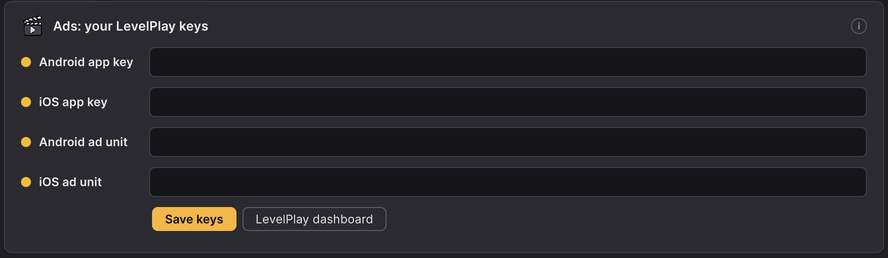
- Hub > Monetization > Ad keys: paste the two app keys and the two rewarded ad unit ids, then Save keys. Optional: one ad unit per placement (Advanced > Placements).
- Hub > Services > Ads > Use it: release builds now use LevelPlay (with the real store too once it is installed:
the
StoreAndAdsServicesprofile).
Technical details: Adapters and backend.
Consent (UMP) and the EEA#
In the European Economic Area, the UK and Switzerland (and some US states) the law requires asking players before ads use their data. The template uses Google's User Messaging Platform (UMP), which LevelPlay reads.
- Hub > Services > Ad consent > Install…: it shows the steps to add the Google Mobile Ads plugin
(
com.google.ads.mobile, from the OpenUPM registry) with Copy buttons. Follow them; the row turns green. The plugin brings Google's dependency manager with it: install Unity's External Dependency Manager too (Package Manager > Unity Registry) and, when Unity asks, choose Use Unity's External Dependency Manager. - In AdMob (admob.google.com): create an app for each platform (its AdMob app id is only used for consent), then Privacy & messaging: create the GDPR message and the US state regulations message.
- Put your AdMob app ids in Assets > Google Mobile Ads > Settings. Pre-flight shows
keys.admobwhile the template's are still there.
What the game does, in order, before the first ad: the consent form when it is required, then (iOS) the tracking prompt, then LevelPlay starts. If consent does not allow ads, no ad SDK starts. Players change their answer in Settings > Privacy choices. The same answer also decides whether analytics may send anything (see Analytics).
Without the plugin there is no form: ads start at once and analytics consent is assumed. Only ship that where no consent is required.
Unity 6000.6 and the Google Mobile Ads plugin clash on an Android name (build.agp-namespace-gma): the template fixes
it by itself during the build. See Errors.md.
iOS tracking prompt (ATT)#
- Hub > Services > Ads: install the optional iOS 14 Advertising Support (
com.unity.ads.ios-support). - Write the tracking sentence (why you ask) in Hub > Project > Legal (the iOS tracking text,
LegalInfo.asset). The iOS build writes it into Info.plist; iOS closes an app that asks without it. - The prompt is skipped when the player refused consent in the EEA.
Test ads on your phone#
Never tap real ads on your own phone: the network may close your account.
- Find the phone's advertising ID (Android: Settings > Google > Ads).
- LevelPlay dashboard > Setup > Testing (or Test devices): add the device with that ID. It then gets test ads, even before the app is live.
- Start the game online, wait for
[LevelPlay] Rewarded ad loadedin the log, tap an ad button. - Development builds have Launch Test Suite on the LevelPlay settings: LevelPlay's own screen that loads a test ad per network.
To see the consent form outside the EEA, set UMP's debug geography to EEA on a test device.
Troubleshooting ads#
Read the log: adb logcat | grep -E "\[LevelPlay\]|LevelPlaySDK" (Android) or the Xcode console.
| Log line | Meaning |
|---|---|
Init failed (code …) | wrong app key, the app is not active in the dashboard, or no network |
No fill / 509 | the ad unit has no instance of a network (step 4 above), or a new app gets little fill yet |
Init has not answered | the SDK never called back; the last LevelPlaySDK line shows where it stopped |
| works in a development build, not in release | the code shrinker removed SDK classes: see FAQ |
Where the keys live#
- LevelPlay app keys and ad unit ids: in the release service profile (
StoreAndAdsServicesorLevelPlayServices, in your game'sSettings/after Make it yours), edited by Hub > Monetization. - AdMob app ids: the Google Mobile Ads settings asset (
Assets/GoogleMobileAds/Resources/). - These are identifiers, not secrets: they end up inside every copy of your app, as in any mobile game. Never put a secret (a server key, a service account) in the game.
Costs: LevelPlay, Unity Ads and AdMob consent are free to use; the networks pay you. Their terms apply.